How to Create AI Quiz Videos With Claude AI and Google Flow
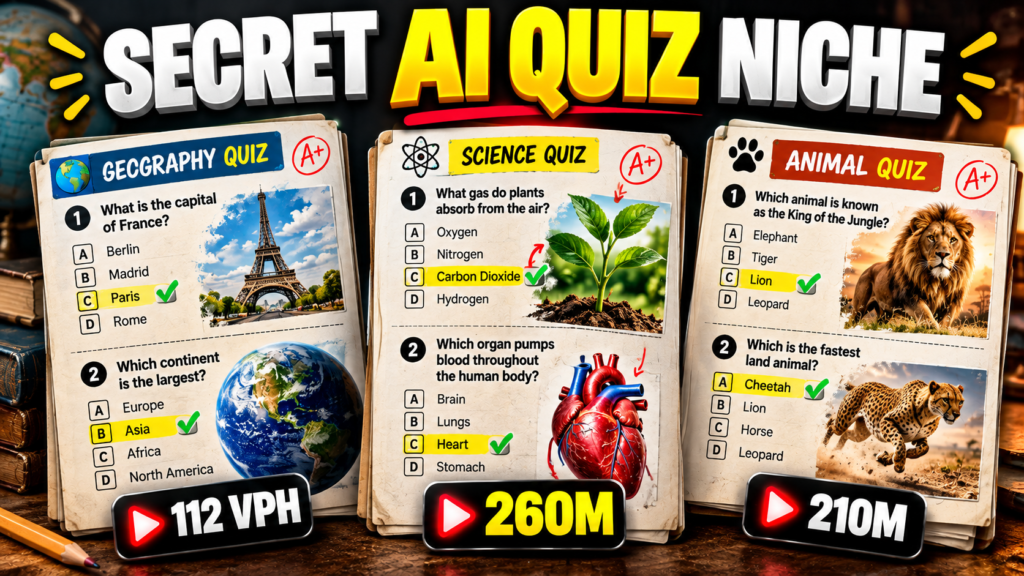
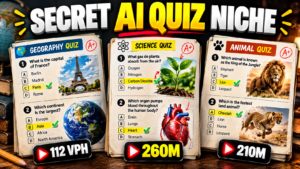
Have you noticed how many quiz videos are appearing on Instagram and YouTube Shorts lately?
Most of them look pretty straightforward. You get a question, some interesting visuals, a little bit of movement, and then the answer. But making these videos one by one can take quite a bit of time, especially when you have to come up with the questions and create all the visual prompts yourself.
I recently tested a much simpler workflow using Claude AI and Google Flow.
The interesting part is that Claude can prepare the quiz and the prompts for the different scenes, while Flow takes care of turning those prompts into visuals and video.
In this guide, I’ll walk you through the process.
What you’ll need
Before starting, make sure you have access to:
- Claude AI
- Google Flow
- Nano Banana 2
- Omni 1.1 Flash
- A video editor such as CapCut
You will also need the master prompt used for this workflow.
Download the master prompt
I have put the prompt in a Google Drive file so you can copy it directly instead of typing everything yourself.
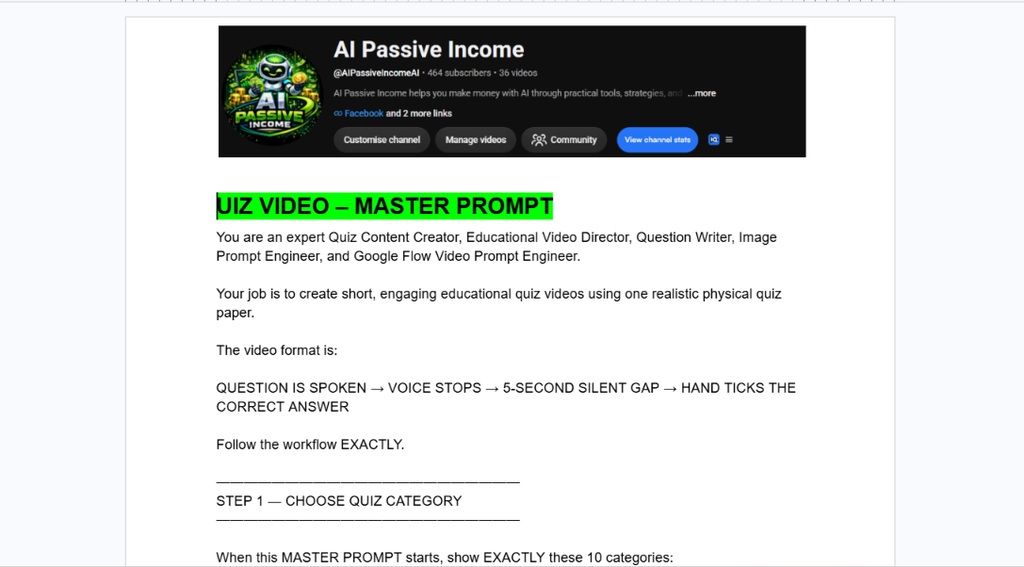
Master Prompt:
👉 GET THE MASTER PROMPT HERE
If the file doesn’t open, check that the Google Drive sharing setting is set to Anyone with the link.
Once you have the prompt, you can start creating the quiz.
Start with Claude AI
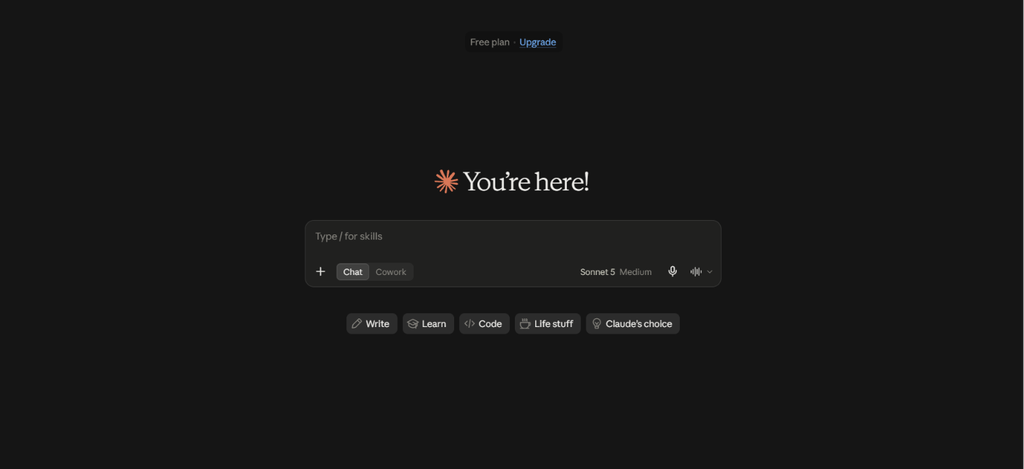
Open Claude and start a new conversation.
Paste the master prompt into the chat and send it.
You don’t need to write the quiz questions yourself. The prompt takes Claude through the setup and gives you a list of quiz categories to choose from.
For my example, I selected the first category.
So I simply entered:
1
Claude then moved to the next step.
This is useful because you can change the category whenever you want to make a different type of quiz.
For example, you could make quizzes around geography, history, animals, science, general knowledge, or other subjects.
Decide how many questions you want
After choosing the category, Claude asks how many questions you want to create.
For this example, I selected two questions.
I entered:
2
and sent it.
Claude then created the scenes for the video.
The output is split into separate scenes, which makes the process much easier to follow.
For the first scene, Claude provides an image prompt and a video prompt.
For the next scene, it provides the video prompt that continues the sequence.
At this point, we can move over to Google Flow.
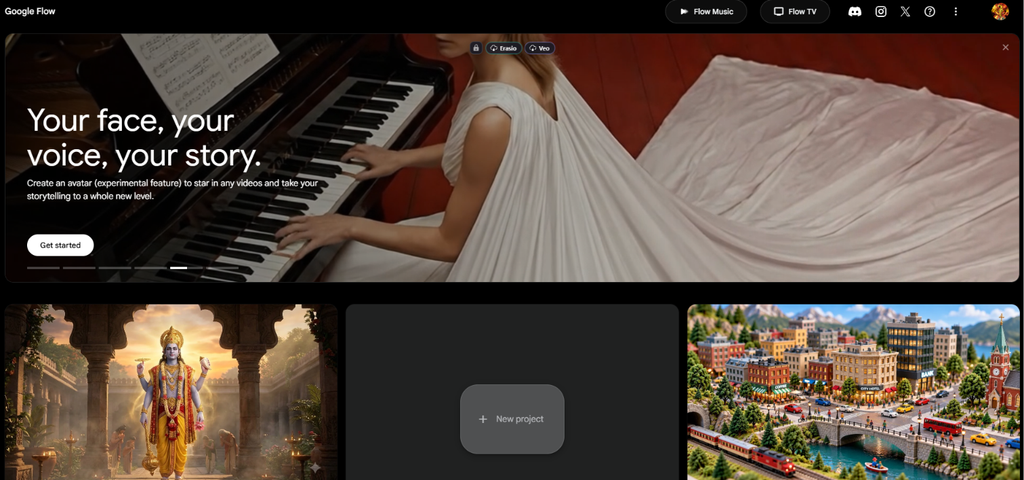
Create the first image in Google Flow
Open Google Flow and start a new generation.
Go back to Claude and copy the image prompt from Scene 1.
Paste that prompt into Flow.
For the image model, select Nano Banana 2 and generate the image.
You should now have the starting image for your first scene.
Don’t worry if it looks like a normal still image at this stage. We’re going to use it as the starting point for the video.
Turn the image into a video
Now return to Claude and copy the video prompt from Scene 1.
Go back to the image you just created in Flow.
Click the three dots on the image and choose Add to prompt.
Paste the video prompt into the prompt box.
For this workflow, I used:
Model: Omni 1.1 Flash
Resolution: 720p
Duration: 10 seconds
Generation: X1
Then start the generation.
After a short wait, Flow will turn the still image into an animated scene based on the prompt.
This is where the project starts to look more like an actual quiz video rather than a collection of generated images.
Use the last frame for the next scene
There is one small step here that is worth paying attention to.
Instead of starting the second scene from a completely new image, use the ending of the first scene as your starting point.
Open the generated video and move to the final frame.
Save that frame.
Now we have an image that represents exactly where the previous scene ended.
This can help make the transition into the next scene feel more connected.
Generate the second scene
Go back to Claude again.
Copy the video prompt from Scene 2.
Then return to Flow and select the last frame you saved.
Click the three dots and choose Add to prompt.
Paste the Scene 2 video prompt.
You can keep the same settings:
- Omni 1.1 Flash
- 720p
- 10 seconds
- X1
Generate the video.
Flow will now use the saved frame as the starting point for the next part of the sequence.
Put the clips together
Once both clips are ready, you can move them into your video editor.
I used a simple editing workflow here. You don’t need to add a huge number of effects.
The important parts are the questions and the timing.
For example, the finished quiz can ask:
What is the capital of France?
Then the second question can appear:
Which is the longest river in the world by volume?
You can add background music, sound effects, captions, or a countdown depending on the style you’re going for.
For short-form videos, make sure the question is easy to read on a phone. There’s no point having a great visual if viewers can’t read the actual question.
The useful part of this workflow
The main reason I like this setup is that you don’t have to start from zero every time.
Normally, creating a quiz video could involve finding questions, writing prompts, thinking about the scenes, generating images, creating videos, and then editing everything.
Here, Claude handles a large part of the planning.
The basic workflow becomes:
Claude AI → Google Flow → Video Editor
And because the master prompt can be reused, you can go back and create another quiz without rebuilding the entire process.
You can also change the category and experiment with different subjects.
Ideas you can try
Once you’ve tested the basic workflow, there are plenty of directions you can take it.
General knowledge
Simple questions that most viewers can answer or guess.
Geography
Countries, capitals, landmarks, flags, maps, and locations.
History
Historical events, famous people, ancient civilizations, and interesting facts.
Animals
Animal facts, identification questions, and unusual animal comparisons.
Science
Space, nature, the human body, physics, chemistry, and everyday science.
The important thing is to choose a topic that matches the audience you’re trying to reach.
A few things I would change when creating your own videos
Don’t make every quiz exactly the same.
If every video has the same background, same timing, same question style, and same ending, the content can quickly become repetitive.
Try changing the subject and visual style while keeping the basic production process the same.
Also, keep the questions straightforward.
A quiz should make someone want to stop scrolling and think, not make them read a paragraph before they understand what they’re being asked.
And pay attention to the first few seconds. The opening question is often more important than adding another transition or visual effect later in the video.
Get the prompt
If you want to try this workflow yourself, I’ve made the master prompt available here:
👉 DOWNLOAD THE MASTER PROMPT
Google Drive:
https://docs.google.com/document/d/1MjSvyEkFNRR36TyOVHca2LpbeJMKBYoYJyLUKJGVX5k/edit?usp=sharing
You can copy the prompt, paste it into Claude, and follow the steps in this tutorial.
Final result
The whole process is much simpler once you’ve done it once.
You choose a quiz category in Claude, tell it how many questions you want, generate the starting image in Flow, animate it, save the final frame, and use that frame for the next scene.
After that, you only need to put the clips together and add any final editing.
The biggest advantage is the repeatability. Once your prompt and workflow are ready, you can test different quiz topics without having to manually design every video from scratch.
If you’re experimenting with AI content creation, this is a useful workflow to try because you can change the subject while keeping most of the production process the same.