How to Make AI Craft Videos With ChatGPT, Google Flow, ElevenLabs & CapCut
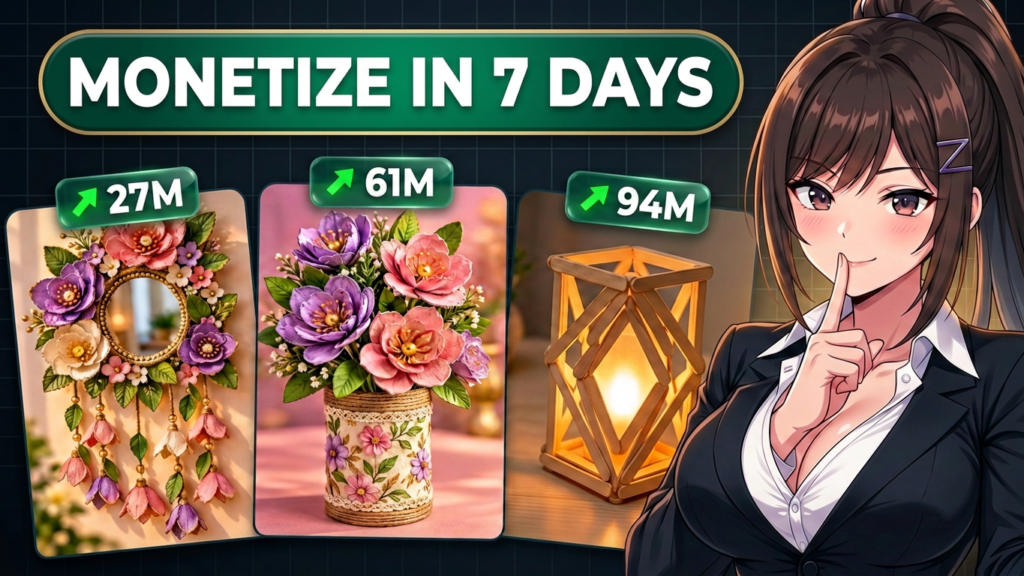
AI-generated craft videos are becoming an interesting way to create visually satisfying DIY content without physically making every craft yourself. With the right workflow, you can turn a simple idea such as a plastic bottle, cardboard box, tin can, or glass jar into an attractive transformation video.
The basic concept is simple:
Ordinary material → creative transformation → beautiful final craft
In this guide, you’ll learn how to create a complete 30-second AI craft video using ChatGPT, Google Flow, ElevenLabs, and CapCut.
What You Need
You can create the complete workflow with four main tools:
- ChatGPT — craft ideas, scripts, and video prompts
- Google Flow — AI-generated craft video clips
- ElevenLabs — voiceover generation
- CapCut — editing and final production
The important part is how you use these tools together. Instead of asking an AI video generator to create an entire complicated craft in one prompt, the workflow divides the video into three connected 10-second clips.
MASTER PROMPT
Step 1: Choose an Interesting Craft Idea
The first step is choosing the transformation.
A good AI craft video should start with something ordinary, inexpensive, discarded, or overlooked and turn it into something visually attractive.
For example:
- Plastic bottle → decorative flower vase
- Tin can → luxury floral lantern
- Cardboard → wall decoration
- Glass jar → decorative candle holder
- Ice cream sticks → miniature lantern
- Plastic spoons → decorative flower
- Old packaging → colorful home décor
The basic formula is:
Cheap or overlooked material → satisfying crafting process → beautiful decorative object
The idea should also have a strong visual difference between the beginning and the end.
For example, showing an ordinary plastic bottle transforming into a colorful decorative vase immediately creates curiosity because viewers want to see how the transformation happens.
Avoid extremely basic school-project-style crafts unless you can give them a more creative, detailed, and premium appearance.
Step 2: Create the Script With ChatGPT
Once you have selected your craft idea, use ChatGPT to create a short narration.
For a 30-second video, the narration should be concise and easy to understand.
A useful structure is:
Hook → Material → Preparation → Transformation → Construction → Finishing → Final Reveal
For example:
This looks like trash right now, but watch what it becomes. Take a simple plastic bottle, cut and shape the pieces, then start building the flower design. Add the wrapping, finish the details, and bring everything together. A few simple steps later, this ordinary bottle has become a beautiful decorative flower vase.
Keep the sentences short and conversational.
The narration should explain what viewers are seeing without becoming too detailed or slowing down the video.
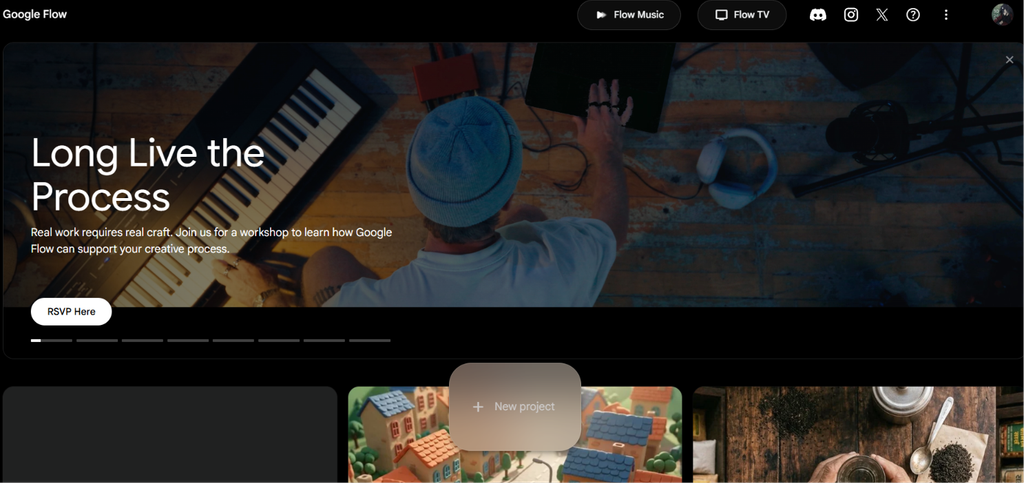
Step 3: Generate Three Google Flow Clips
One of the most important parts of the workflow is dividing the video into three separate generations.
Instead of creating one 30-second prompt, create:
Scene 1 — 0–10 Seconds
Start with the raw material and begin the transformation.
Show:
Raw material → preparation → first crafting actions
For example, show the plastic bottle being placed on the workspace, cut, shaped, and prepared for the flower design.
The scene should finish with a recognizable partially completed craft.
Scene 2 — 10–20 Seconds
Continue directly from the ending of Scene 1.
Show:
Partially completed craft → main construction → decorative details
The same hands should continue working on the same object.
Do not restart the project.
Scene 3 — 20–30 Seconds
Continue from the exact ending state of Scene 2.
Show:
Finishing → final details → completed craft → reveal
This is where the craft should become visually impressive.
Add details such as flowers, beads, decorative edges, metallic accents, textured wrapping, or other elements that make the final object look premium.
The three clips should feel like one continuous crafting session rather than three unrelated AI generations.
Why Continuity Matters
AI video generators can sometimes change objects between generations.
A plastic bottle might suddenly have a different shape. The hands may change. The workspace may look different. Colors can change, or the AI may suddenly show a finished product.
To reduce these problems, describe the same visual elements in every prompt.
Keep the following consistent:
- Hands
- Skin tone
- Fingernails
- Tools
- Materials
- Material colors
- Textures
- Craft shape
- Object proportions
- Workspace
- Camera angle
- Camera distance
- Lighting
- Shadows
- Color palette
The second scene should begin from the exact physical state where the first scene ended, and the third scene should continue from the exact state where the second scene ended.
Most importantly, don’t let the AI magically complete the craft.
Every transformation should happen through visible physical actions.
Cut → shape → attach → decorate → finish
This creates a much more believable crafting sequence.
Step 4: Make Your AI Craft Look Premium
The quality of the final craft depends heavily on the visual design.
Instead of using random colors, choose a coordinated palette.
Some combinations you can use include:
- Pink + purple + gold
- Emerald + ivory + gold
- Turquoise + lavender + white
- Royal blue + pink + gold
- Magenta + purple + silver
You can also use texture to make the craft more realistic.
For example:
- Paper fibers
- Fabric texture
- Plastic reflections
- Wood grain
- Metallic surfaces
- Beads
- Ribbons
- Layered petals
- Slight handmade imperfections
The goal is to make the final object look like something people would actually want to display in their home.
A strong contrast between the starting material and the finished product also makes the transformation more satisfying.
Step 5: Add Realistic Craft Sounds
The video should not rely only on narration.
Small crafting sounds can make the process feel much more satisfying.
For example:
- Scissors cutting
- Paper folding
- Paper tearing
- Glue being squeezed
- Beads clicking
- Wood tapping
- Wire bending
- Brush strokes
- Fabric movement
- Materials being placed on the table
Try to synchronize the sound with the visual action.
If the scissors cut the material at a specific moment, the cutting sound should happen at the same moment.
This creates a more immersive craft experience.
Keep the AI-generated visual clips focused on the crafting process rather than trying to generate a presenter or talking character inside the scene.
Step 6: Generate the Voiceover With ElevenLabs
After creating the script, generate the narration separately.
Open ElevenLabs and select Text to Speech.
Paste your ChatGPT-generated script into the text box and choose a suitable voice.
For DIY content, a friendly and clear voice usually works well.
Generate the voiceover and save the audio file.
Keeping the narration separate from the AI video gives you much more control over the final edit.
You can adjust the voice volume, timing, pauses, and sound effects without regenerating your visual clips.
Step 7: Edit Everything in CapCut
Now bring the complete project into CapCut.
Import:
- Scene 1
- Scene 2
- Scene 3
- ElevenLabs voiceover
- Craft sound effects
- Background music if needed
Place the three AI-generated clips in the correct order.
Then align the narration with the visual actions.
You can also add:
- Smooth transitions
- Subtle zooms
- Sound effects
- Background music
- Text overlays
- Color adjustments
- Final reveal effects
However, avoid adding too many effects.
The craft transformation should remain the main focus.
Create a Strong First Three Seconds
The opening is extremely important for short-form content.
Don’t spend the first few seconds explaining what the video is about.
Start with the object and the transformation.
For example:
“This looks like trash right now… but watch what it becomes.”
Then immediately show the crafting action.
Another approach is to briefly show the finished craft before returning to the starting material.
The goal is to create curiosity without revealing everything too early.
Make the Final Reveal Satisfying
The final few seconds should clearly show what the ordinary material has become.
Give the finished craft enough screen time to be understood.
Use a clean composition, attractive lighting, and a close-up of the finished details.
The viewer should be able to clearly see the difference between:
Before → Process → After
That transformation is the central story of the entire video.
Common AI Craft Video Problems
1. The AI Changes the Craft
If the object changes between scenes, make the prompts more specific.
Repeat the object’s shape, materials, colors, and current physical state.
2. The AI Finishes the Craft Too Quickly
Describe exactly what should happen during the 10-second scene and specify how the craft should look at the end.
3. The Video Looks Generic
Use more interesting materials, stronger color combinations, layered details, textures, and decorative elements.
4. The Hands Change
Describe the same hands, fingernails, tools, and workspace throughout all three prompts.
5. The Final Reveal Feels Weak
Save enough time for the finishing touches and clearly show the completed object at the end.
Complete AI Craft Video Workflow
The complete process can be summarized like this:
1. ChatGPT
Generate the craft idea.
2. ChatGPT
Create the short narration and connected video prompts.
3. Google Flow
Generate three separate 10-second craft clips.
4. ElevenLabs
Generate the narration.
5. CapCut
Combine the clips, narration, sound effects, music, and finishing touches.
6. Publish
Export the final video and publish it as a YouTube Short, Instagram Reel, TikTok, or other short-form content.
Final Thoughts
Creating AI craft videos is not simply about generating a random AI clip.
The strongest workflow is to treat the video as a continuous transformation.
Start with an ordinary material, create a visually interesting idea, divide the process into three connected scenes, maintain consistency between generations, add realistic crafting sounds, generate the narration separately, and then bring everything together in CapCut.
The complete formula is simple:
ChatGPT → Google Flow → ElevenLabs → CapCut
With this workflow, you can turn ordinary materials and creative ideas into colorful, satisfying AI craft transformation videos without having to physically create every craft yourself.